



Index
The Information Security Symposium has selected Hopin as its virtual events platform for ISS 2021. Hopin provides an "all-in-one" platform for concurrent webinar style stages for keynote-type activities, roundtable type sessions, 1-on-1 (or more) attendee meeting, and a platform for attendees to navigate all of this without the need to integrate any additional third-party services.
Hopin also provides an extensive knowledgebase to help attendees get the most out of their event experience, some of which is included below.
You will first need to create a Hopin account, and register for the event in order to present. If you have not already done so, please register, or contact [email protected] for assistance.
Your first event on Hopin
Once attendee enter the event, they will see the Reception area. This is page includes:
- Welcome message (event description, useful links to bring even more value to the Attendees)
- Sponsor logos (clickable logos that bring to Sponsors website)
- Event Schedule (what's happening, when, and which segment to follow)
- Speakers list (who is speaking at the event)
- Booths (expo exhibitors)
The five areas of Hopin
There are five areas at the event hosted on Hopin. You can have all of them or one of them or two of them in your event - it's completely up to you and the experience you want to create for your attendees. Each area is flexible and provides live interaction for your attendees in different ways.
Event Segments

1. Reception
The Reception area is the welcome page or "lobby" of your event. Here you can quickly find out what’s happening at the event currently: the organizer's welcome message, sponsors, the schedule, and speakers. The Reception area has announcements, important links, and event updates.
2. Stage
It's a one-to-many interaction area that where our keynote and entertainment activities will be held. Our stage area is broken up into 2 stages.
Main Stage
This is the stage the stage you should never miss. All of our major events including Opening Remarks and Keynotes will be held on this stage. If you see this live in your schedule, be sure to head there right away.
Entertainment Stage
This is the stage where the fun happens. We'll have live entertainment, games, and prizes happening here throughout the day. Watch for the Entertainment tag anywhere in the event, and be sure to stop in.
3. Sessions
The Sessions segment of the event is the where you'll head to learn. Most sessions / workshops / and other presentations will be held in this segment. In Sessions, you will see virtual roundtables for speakers and attendees to interact. This is often where attendees ask questions to the presenters on camera.
Since we have so many great sessions, to keep listings less crowded, you'll only see sessions that are currently open according to our Schedule and automatically hide once their time is up. Sessions open 5 minutes in advance of the scheduled start time, so grab your hall pass and head on over.
If you do need to find an hold session, take a look at the list of previous sessions by clicking Show past segments at the Reception area of the event.
All our scheduled sessions are moderated by default, so if you want to jump in and join the conversation, click the "ask to Share Audio and Video" button in the top right of your screen, and our moderator team will get you up when there's a space for questions/feedback.
4. Networking
The Networking segment on Hopin is pure engagement and is similar to one-on-one meetings on a FaceTime call. This segment is designed to recreate the "coffee-in-the-lobby" conversations or watercooler chats that are important at an in-person event. The Networking area automates the discovery of new connections. When an attendee participates in the Networking, they are matched with a random attendee and meet for a set time preset by the organizer.
Attendees can click the Connect button during a call to exchange contact information and after the event the newly made contacts will appear at the Connections page of their individual Profile.
5. Expo
The Expo area is the virtual exhibitor hall with vendor virtual spaces. We have some great sponsors, who will be periodically hosting a variety of Education Sessions and Product Updates throughout the event. Some of these sessions may even be giving away prizes, so be sure to stop in and have a chat.
Getting around in Hopin
Similar to a physical event, the online event experience is self-directed but with wayfinding tools and signs to help you easily get around. Attendees ultimately choose where they want to go. The Reception should always be a good starting point to find What's happening now.
All event segments on Hopin are open during the entire event, but you'll see indicators pop-up in areas as presentations start. Always look for the Live or Now labels and check the Schedule for what's going on.
Chat
Event Chat
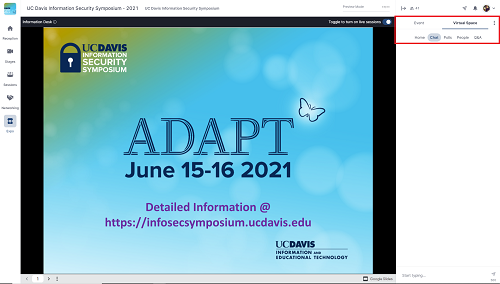
Hopin is meant to be interactive, no matter where you are. With that in mind, context is key. Every area of the event has a localized chat (Stage, Session, Virtual spaces, Direct messages) AND a global Event chat.
Global chat
The global chat spans the entire event, and can be used to interact no matter where you are. With over 800 registered attendees, this area is likely to get noisy, so please be polite and aware of what you put out here
Localized chat
The localized chat is for you to interact with your peers that are in the same area as you, engaged in the same content. Use this as an easy way to engage with presenters, and others in your session, or whatever space you're in.
Networking
There are a few different ways to network, and we recommend you explore all of them. While there's dedicated time to joining random networking sessions (watch for you Networking segment to light up during breaks), you can also reach out to other attendees directly and as for 1:1 meetings. In fact, you can create on the fly meetings, or scheduled meetings with up to 5 of your closest friends!
Learn more at https://hopin.zendesk.com/hc/en-gb/articles/360056078832-Scheduling-1-1-Meetings
Technical tips
Browser Compatibility
Currently, Hopin online events platform is fully compatible with Desktop (web) on the following browsers updated to the latest version:
- Google Chrome (highly recommended)
- Mozilla Firefox
We recommend running a desktop browser for the best and seamless experience across the Hopin platform.
Stream Test
If you plan to go on screen during the event, take a minute to prepare by running a stream test
The Hopin Stream Test (also known as Precall) is a tool Hopin provides to test the stream quality of users' devices before participating in events hosted on Hopin. The test results will help determine if the local device set up is good to go for an event or if there are likely to be issues.
It is available at the following URL as a dedicated page: https://app.hopin.to/precall.
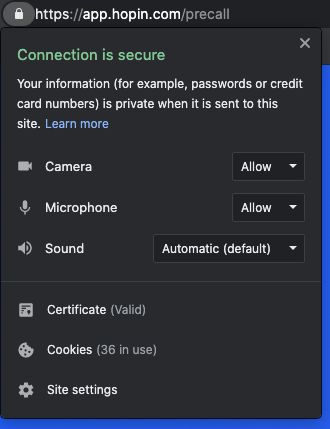
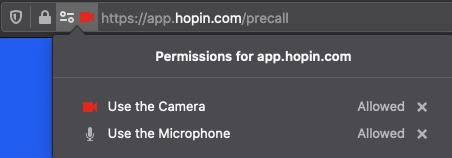
If your video doesn't show up, make sure the camera and microphone are allowed first.
In Chrome, click on the padlock at the left side of the address bar and make sure the camera and microphone are both allowed.
In Firefox, click on the camera icon at the left of the address bar and make sure both camera and microphone are allowed.
For more information on streaming tests, see https://hopin.zendesk.com/hc/en-gb/articles/360059622932-Test-your-stream-quality-with-the-Hopin-Stream-Test.
Going on screen
Sessions in our Hopin event will be moderated by our team of volunteers, with at least one moderator assigned to each session. Moderators can approve any attendee to Share Audio and Video using the built in Moderation Panel. As a presenter, in order to go on screen, you will first Ask to Share Audio and Video.

Once allowed, you will choose their audio/video devices and then appear on camera. From here, you can toggle on and off your microphone, camera, and screen sharing, using the session controls.

Presenting Slides:
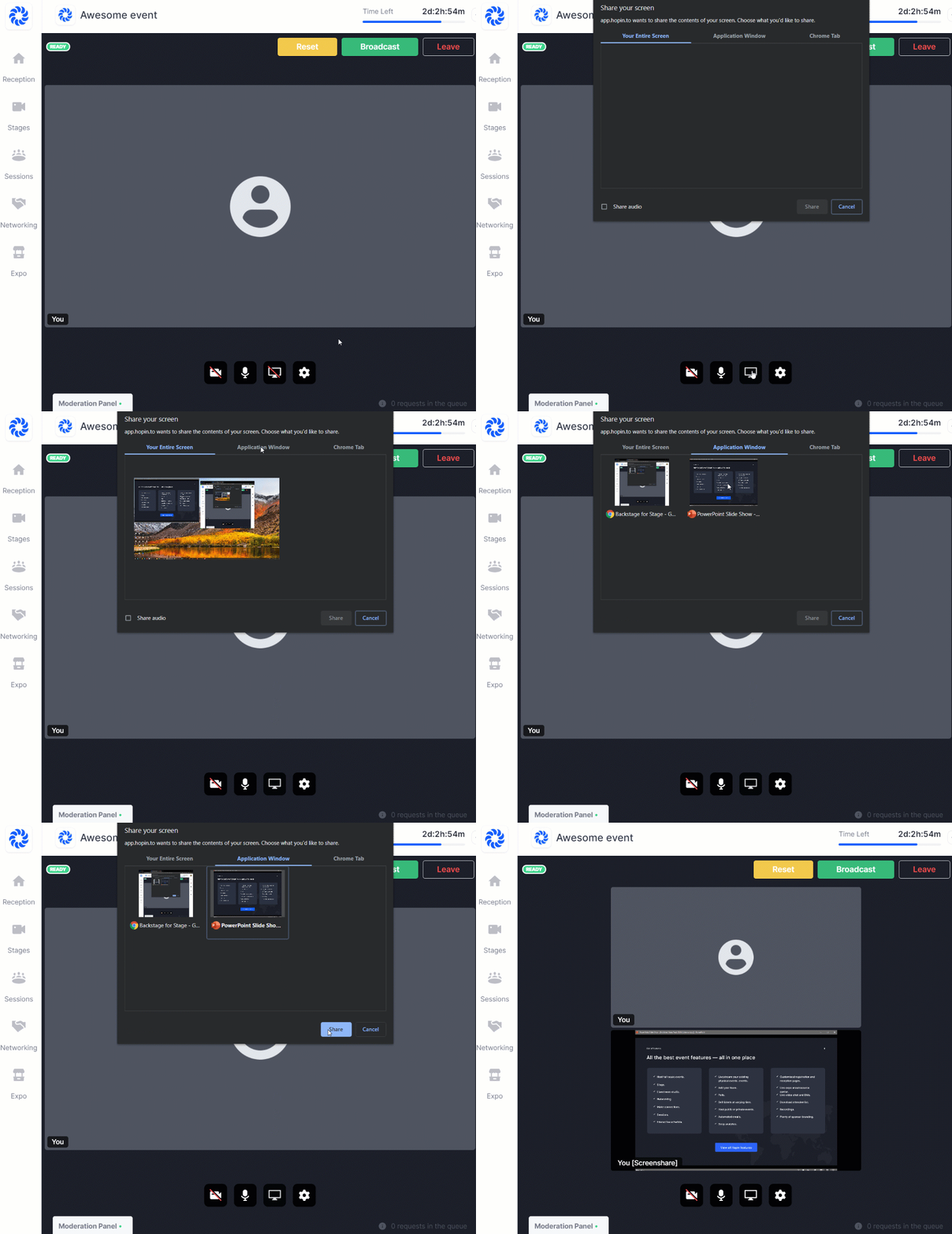
- Open your presentation slides in a separate window.
- Once in the Session area, you will need to click the Screen share control.
- Screen-sharing is limited to one person at a time and will not be accessible to other presenters/speakers until screen-sharing is stopped.
- Select the window or tab that your presentation slides are on
- Select and click Share.
- Attendee chat messages will be accessible in the Session through the Event chat box.
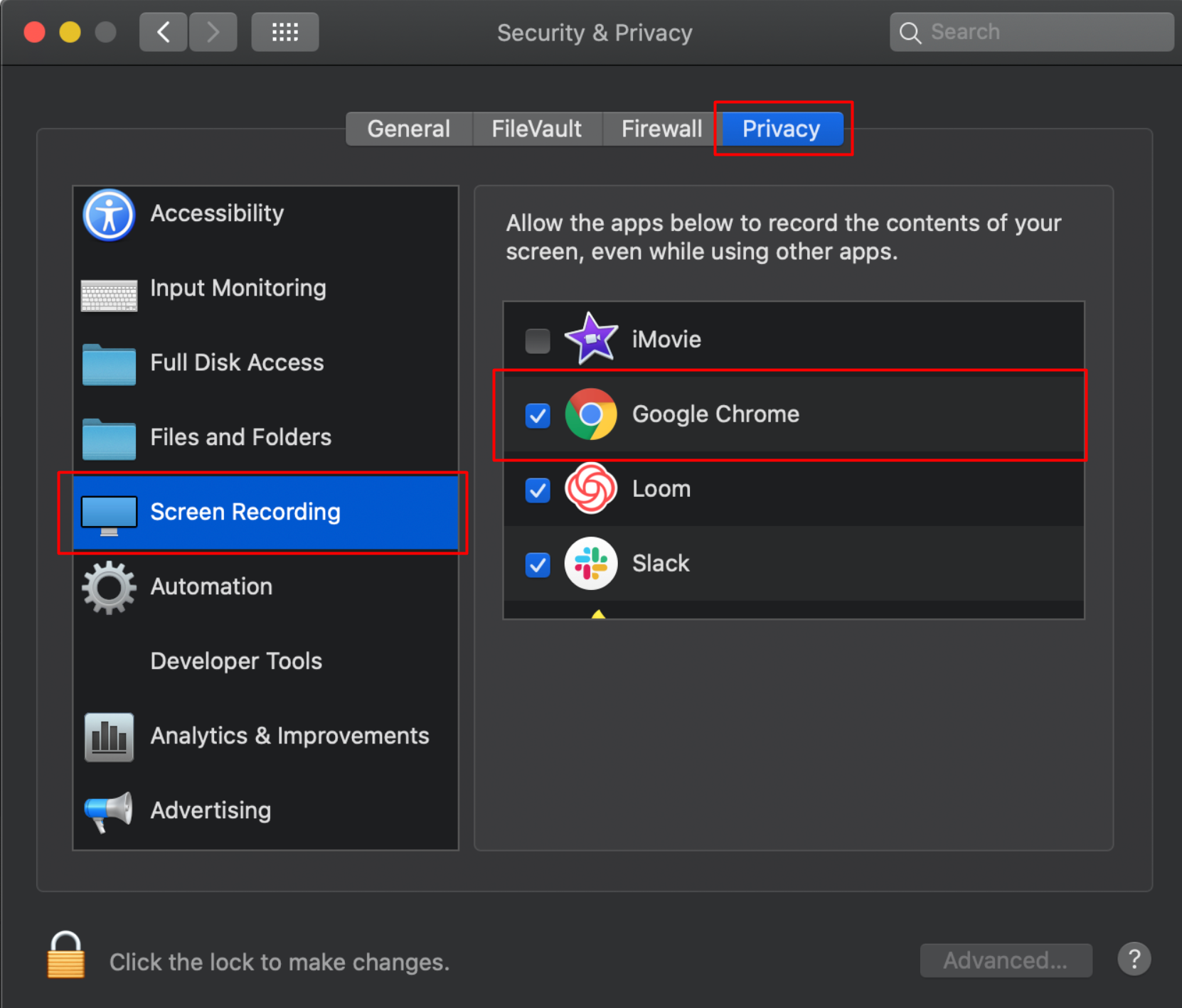
Note: For Macs, you may need to allow your browser permission to access Screen recording:
- Open the System preferences
- Navigate to Security & Privacy > Privacy
- Find Screen Recording on the left side and check the box next to the browser you are using
Note: If you will be sharing audio content (such as a YouTube video) from your Google Chrome browser, you will need to share the sound from that tab.
- Click the screen sharing icon on the bottom menu
- A window will popup with three tab options
- Select Chrome Tab towards the right
- Check the Share audio box
- Click the Share
Note: Firefox is not yet a supported browser with browser tab sound sharing

For more information on sharing slides, see the Hopin Knowledge article at https://hopin.zendesk.com/hc/en-gb/articles/360056527631-Sharing-your-Powerpoint
Things just aren't working
Video playback issues.
Depending on your internet connection speed, bandwidth, and other factors sometimes you may experience blurry, fuzzy, choppy, freezing, video playback while watching a Hopin event's stream. Below are a few knowledge articles that might help you troubleshoot stream quality issues
https://hopin.zendesk.com/hc/en-gb/articles/360056078872-Browser-Compatibility-for-online-events-on-Hopin
https://hopin.zendesk.com/hc/en-gb/articles/360061525491-Troubleshooting-blurry-screen-shares-on-Hopin
https://hopin.zendesk.com/hc/en-gb/articles/360060865971-Troubleshooting-video-playback-issues-on-Hopin
Restrictive connections
Finally, we live in a complex networked world. Some of us more than others. If you are on a work network or any network behind a highly restrictive firewall, you may need to speak with your IT department or network administrator. When you do, please give them the websites at https://hopin.zendesk.com/hc/en-gb/articles/360056528911-Network-Connectivity-Settings to whitelist, or ports to open. These aren't widely needed, but particularly in highly restrictive government agencies, and sometimes healthcare with users connecting in from restrictive full tunnel VPNs, this is worth noting.